Git I'm inside you

Before we go inside, we should know what this Git is.
You can read this article git basics if you wanna know briefly, or let me make it short for you here.
Git is basically a VC, a distributed version control system. Git's main feature is to allow multiple developers to work on the same project simultaneously without overwriting each other’s work. There are many other VCs, but Git has become the industry standard and the most widely used distributed version control system. It has now become the backbone of hosting services like GitHub, GitLab, and others. Git remembers every single change that you or any developer makes on the project. You can travel back in time to see exactly what the code looked like last week, last month, or even 2 years ago. If any developer messes with the code or breaks it, you can revert to the previous working version. Without Git, you would have to manually rewrite the code.
How it works internally ?
Most users memorize the git commands like git add, git commit, but they don’t understand what is happening under the hood. It will make much more sense if you understand git inside out. Let me try.
At its core, Git is a tool for tracking code, storing data, and history. Let me show you how Git does that internally.
Snapshots
Compared to other VCs, Git stores snapshots, which means if you have 4 files, Git saves a copy of all 4 files exactly as they are at that time. Each snapshot is identified by a unique hash code, which is a string of characters that represents the content.
Don’t confuse a snapshot with an image, it’s just a representation of the code at a given point in time. Everything is stored as an object, and every object is identified by a unique hash code.
The three core objects
Binary Large Object (Blob)
Blob contains the actual file, it does not store the filename, it only stores the raw data of the file. Suppose you have two files with the same content on both of those files but you used different names (final.txt and final_backup.txt) so git only stores one blob to save space because both filenames point to the same blob.
Commit object
When you run git init on your terminal, Git creates a hidden folder .git that acts as the brain of the project. Everything in Git is an object. Every time you run git add or git commit, each commit is stored in the .git folder as a commit object.commit object contains following information :
Tree Object
Parent Commit Object
Author
Committer
Commit Message
Tree object
Tree Object is a container for all the files and folders in the project. It contains the following information:
File Mode
File Name
File Hash
Parent Tree Object
How git commit happens ?
when you type git add <filename> and git commit -m “message”
compression - Git first takes the content of the filename and compresses it, then calculates a unique hash code based on the content inside, and that’s how it creates a Blob.
Tree - Git updates the tree object so that it now points the filename to this new blob hash.
commit - Git create a commit object
It sets the
parentfield to the previous commit's hash.It sets the
treefield to the hash of the updated Tree.It adds your name, timestamp, and commit message.
Git save all these objects into the .git/objects directory.
Let’s look inside
If you look inside the project's hidden .git folder, but first, how do you look into the hidden folder?
Because it starts with a dot (.), your system hides it by default to prevent accidental changes.
if you wanna look
On your terminal use ls -a
In VS code - It is usually hidden from the sidebar unless you remove it from the Files: Exclude settings.
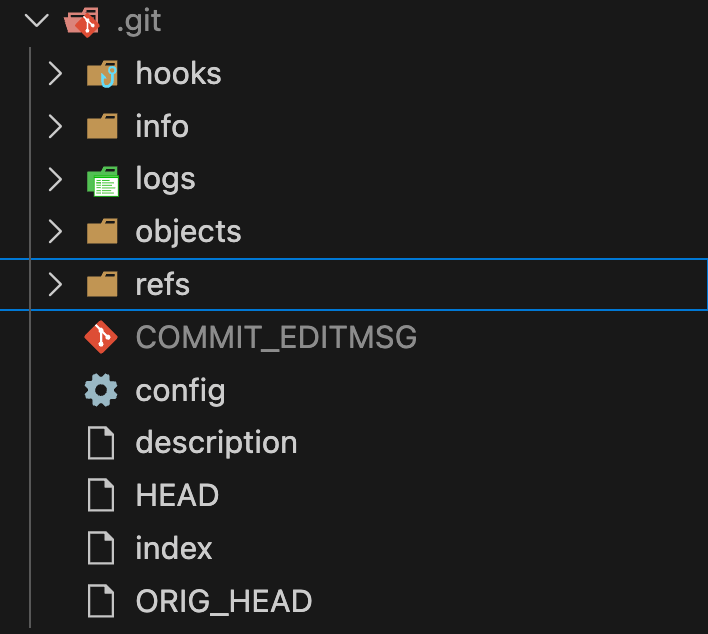
The moment you use the git init command, this folder gets created. It exists to prevent interference between the working directory and the changes recorded by Git. Git keeps all the repository data and history here. It contains many subfolders. Let me try to break down some of them for you.
objects - The /objects folder is the most important part of the directory as I told you earlies that stores three main objects
Commit
Tree
Blob
ref - This folder stores two subfolders that point to specific commits
heads - This sub-folder contains files named after your branches (like
mainorchaicode).
tags - Stores pointers to specific points in history that you’ve marked as important.
HEAD File - HEAD is a small text file that tells Git which branch you’re currently working on, and if you run git checkout chaicode, you can see the content of the file change from main to chaicode.

Config File - The config file stores project settings, including your remote repository setup, such as your GitHub link and the username or email you set up during your initial configuration.
Index file - The index is a binary file that acts as the ‘Staging area’ When you run the git add command, Git updates this file to track the changes you intend to include in your next commit.
The .git folder contains the entire history of the project, and when you clone any repository from GitHub, you don't just get the current files; you also get a full copy of this .git directory (folder).


